Sage 100 Navigation 101
What you'll learn
- The layout of the Sage 100 desktop and how modules are organized
- Using the navigation pane, favorites, and recent tasks to get where you need to go
- How Lookups (F2) work — and why they're your most-used tool
- Where to get help when you're stuck
1. The Sage 100 desktop
The Sage 100 desktop is your home base. Everything in Sage is organized into modules — Sales Order, Accounts Receivable, Inventory Management, and so on. Each module contains tasks (the actual things you do, like entering an order or running a report).
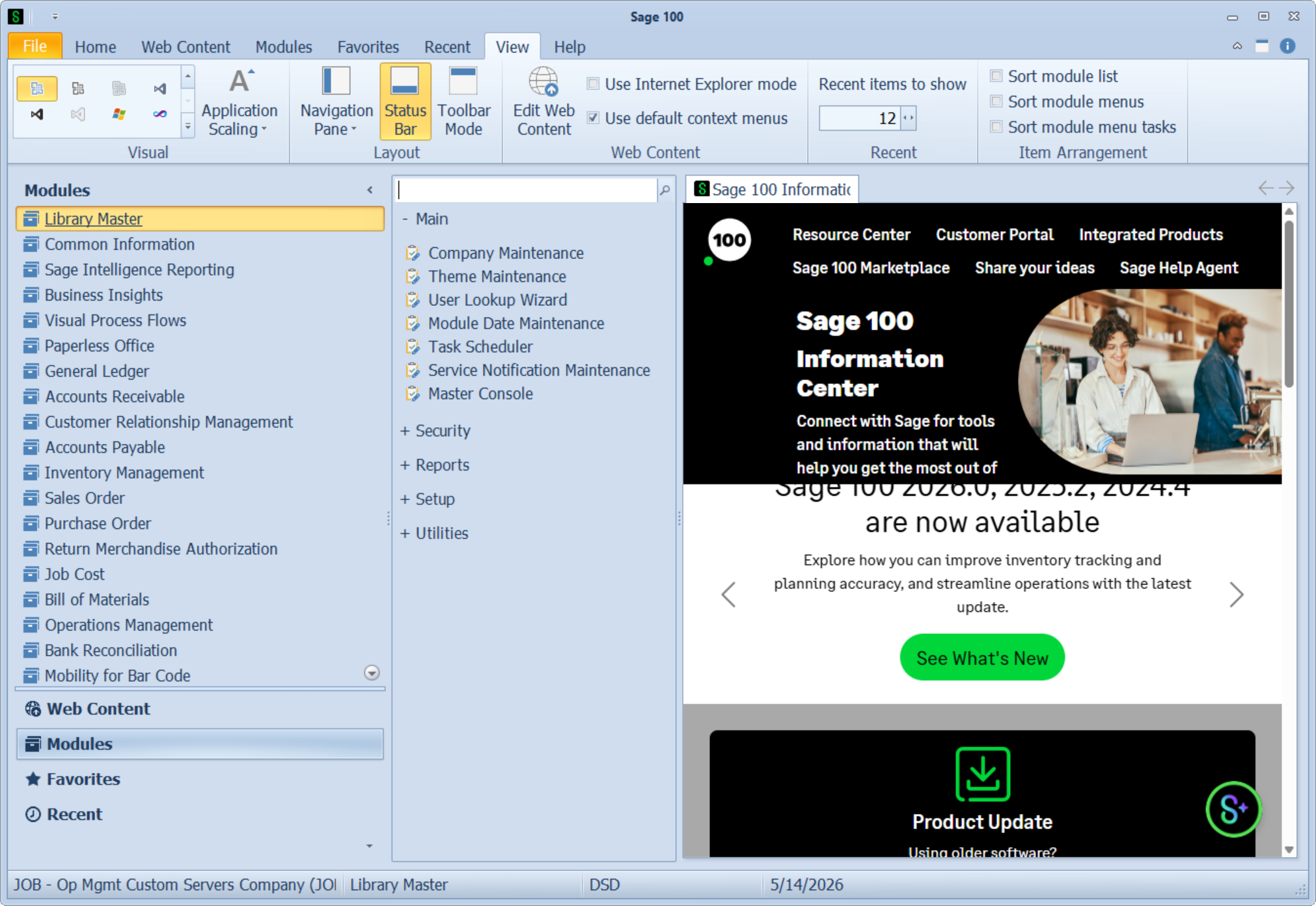
The company code in the status bar at the bottom of the window shows which company's data you're working with — for Redi-Bag, this will look like RED - Redi-Bag (or whatever code is assigned during go-live). Most people will only have access to one company, so you won't need to change it.
How modules are organized
Each module has a consistent sub-structure. Once you understand the pattern in one module, every other module makes more sense:
- Main — the day-to-day data entry tasks (e.g., Sales Order Entry, Customer Maintenance)
- Reports — printable reports for that module (e.g., Open Sales Order Report)
- Period End — month-end and year-end processing
- Setup — configuration screens (usually only Tom or the controller will use these)
- Utilities — maintenance tools (mostly admin-level)
- Inquiry — read-only "look-up" tasks for browsing data without changing anything
Modules you'll see at Redi-Bag
You won't have access to every module — your access depends on your role. The modules in use at Redi-Bag are:
- Library Master — the foundation (users, companies, settings)
- General Ledger (GL) — the chart of accounts and financial reports
- Accounts Receivable (AR) — customers, invoices, cash receipts
- Accounts Payable (AP) — vendors, bills, check runs
- Inventory Management (IM) — items, lot tracking
- Sales Order (SO) — quotes, orders, shipping, invoicing
- Purchase Order (PO) — purchase orders, receipts
- Bill of Materials (BM) — product structures (light use at Redi-Bag)
2. Getting to a task
There are three ways to open a task in Sage 100. Most people end up using a mix of all three.
Method 1 — Click through the navigation pane
Expand the module on the left, then the folder (Main / Reports / etc.), then double-click the task. Slow but obvious — good for tasks you don't run often.
Method 2 — Search
At the top of the task pane there's a search box. Type any part of the task name (e.g., customer maint) and Sage will filter the list to matching tasks. Hit Enter on the highlighted result to open it.
customer maint in the search box at the top of the task pane. Screenshot the result so people can see how the list filters down to just the matching tasks.Method 3 — Favorites
For tasks you use every day, drag them into the Favorites section (or right-click a task → Add to Favorites). They'll appear in the Favorites tab at the bottom-left of the navigation pane for quick access.
3. The most important key: Lookups (F2)
Almost every screen in Sage 100 has fields where you need to pick something — a customer, an item, an account, a vendor. Instead of memorizing codes, you press F2 (or click the magnifying glass icon) to open a Lookup window.
You'll use F2 lookups constantly. Get comfortable with them and you'll move through Sage twice as fast.
Filtering and searching in a lookup
The default lookup view might show every record, which isn't useful when there are thousands. Two ways to narrow down:
- Type-ahead: Just start typing in the first column. The list jumps to the closest match.
- Filter: Click the Filters button (or the filter icon) to set up a saved filter — e.g., "only customers in the West region" or "only items with quantity on hand > 0".
Customizing what you see
You can customize the columns shown in a lookup window — right-click the column headers and pick Select Columns…. Add or remove fields and reorder them. These changes save per-user, so you only have to set them up once.
4. Getting help
Sage 100 has built-in help, but more often you'll want to ask someone. Here's the hierarchy:
- Press F1 on any screen — opens Sage's built-in help for that specific task. Surprisingly useful.
- The on-screen field hints — many fields have a small ? icon or tooltip explaining what they do.
- Ask a teammate — somebody at Redi-Bag has probably hit the same problem.
- Ask Tom — that's me, your Sage consultant. Email is fastest for non-urgent questions; phone for "everything's on fire" moments.
Quick reference cheat sheet
Frequently asked
The module list is empty / I can't see a module I expected.
You probably don't have access rights to it. That's usually intentional — your role only includes what you need. If you think it's an error, let Tom know.
I clicked something and now I'm stuck in a screen I don't recognize.
Press Esc or click the X in the corner to close the window. Sage almost always lets you back out without saving. If it prompts "Save changes?" and you didn't mean to change anything, click No.
Can I have two Sage windows open at the same time?
Yes — Sage lets you run multiple tasks side by side. Open Sales Order Inquiry in one window while you have Customer Maintenance open in another. Handy for looking things up while you're entering data.
My screen looks different from the trainer's screen.
Sage 100 desktops are customizable — pane position, panel sizes, favorites, etc. all save per-user. Don't worry if yours doesn't look identical; the menus and tasks are the same.